Downloading a dataset
You can export and download an entire dataset as a CSV file directly from the Snorkel Flow UI. This feature allows you to extract your data along with all associated metadata including ground truth labels, annotations, slice membership, and comments.
Overview
The CSV export functionality provides a complete snapshot of your dataset that can be used for:
- External analysis: Analyze your data using external tools like Excel, Pandas, or other data analysis platforms
- Backup and archival: Create a backup of your dataset with all associated labels and metadata
- Sharing and collaboration: Share your labeled data with team members or external collaborators
- Integration with other systems: Import your data into other machine learning pipelines or tools
The export includes all datapoints in the dataset along with any available metadata such as ground truth labels, annotations from different sources, slice memberships, and user comments.
CSV file contents
The exported CSV file contains the following information:
Core dataset columns
- Original data fields: All columns from your original dataset are included with their original column names
__x_uid: A system-generated unique identifier for each datapoint
Ground truth columns
For each label schema in your dataset, a corresponding ground truth column is included:
- Column name format:
gt_for_label_schema_{label_schema_name} - Content: The ground truth label for that datapoint, if one has been assigned
- Label format:
- Single-label questions: The selected label value (e.g., "positive", "negative")
- Multi-label questions: A list of present/absent values for each label option
- Text label questions: The freeform text entered as the label
- Sequence tagging questions: A list of tagged spans with their labels
Annotation columns
Annotations from different sources (annotators, models, or other sources) are included in separate columns:
- Column name format:
annotation_source_{source_name} - Content: A JSON object containing annotations for all label schemas from that source
- JSON structure: Maps label schema names to their corresponding annotation values
{
  "sentiment": "positive",
  "category": ["news", "politics"]
}
Slice membership columns
For each slice defined in your dataset:
- Column name format:
slice_{slice_name} - Content: Boolean values (
trueorfalse) indicating whether the datapoint is a member of that slice
Comments column
- Column name:
comments - Content: All comments associated with a datapoint, separated by the pipe character (
|) - Format:
comment1 | comment2 | comment3
How to download a dataset
Follow these steps to export and download your dataset as a CSV file:
Step 1: Navigate to the dataset
- Open the Datasets page from the main navigation menu
- Click on the dataset you want to export to view its details
Step 2: Click the Export button
In the dataset header (where the dataset name is displayed), you'll find an Export button represented by a download icon.
- Click the download icon button in the dataset header
- You'll see a notification message indicating that your export has been initiated
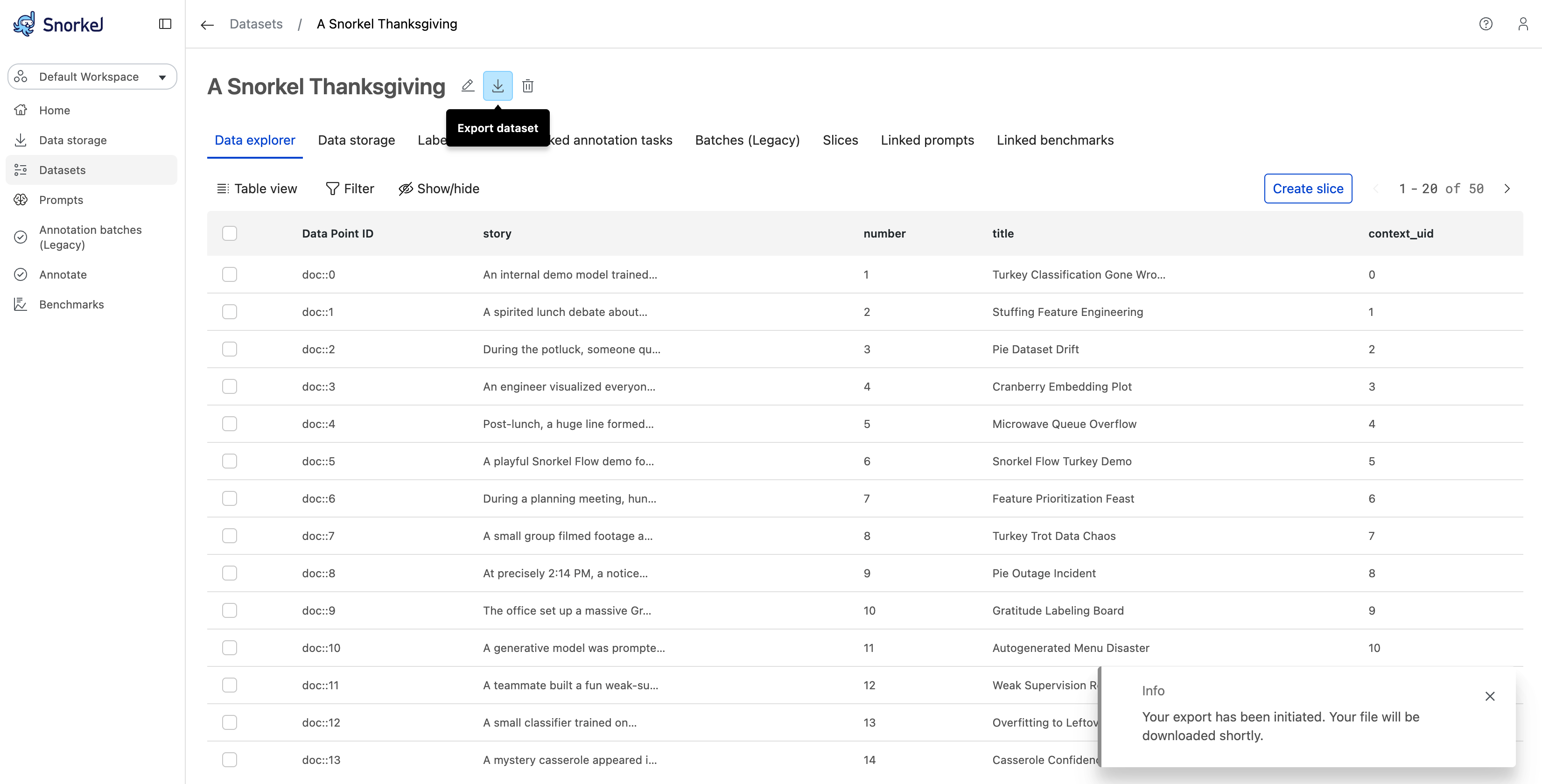
Step 3: Download the file
Once the export is complete, your browser will automatically download a ZIP file containing the CSV:
- File name format:
dataset_{dataset_uid}.zip - Contents: A single CSV file named
dataset_{dataset_uid}.csv
The export process may take some time depending on the size of your dataset. For large datasets with many datapoints, annotations, or comments, the download may take several minutes. A spinner will be displayed while the export is in progress.