Label form questions
The following sections walk through the four different question types and how to set them up and use them:
Single-label questions
Overview
In single-label questions, an annotator will assign a single label to each document. For example, assigning banking contract documents to one of the following classes: "employment," "loan," "services," or "stock."
Setting up single-label questions
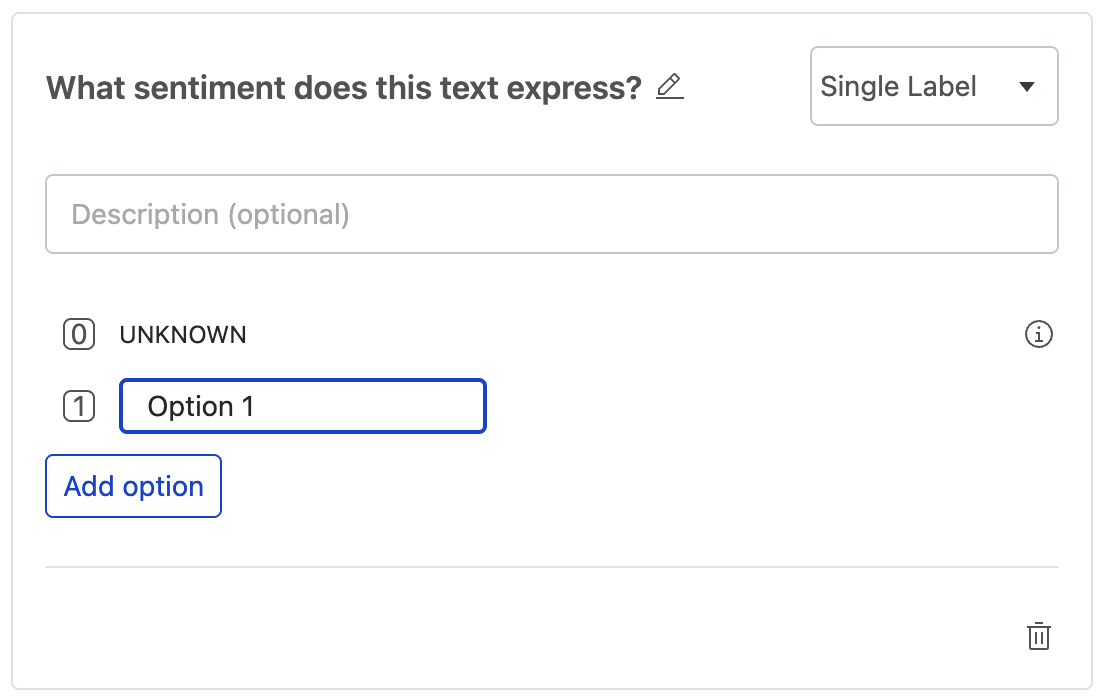
To set up a single-label question, replace the placeholder name with a clear, descriptive question (e.g., "What sentiment does this text express?"). Then, click on a label name (e.g. "Option 1") to modify it (except for the default UNKNOWN label) or click "Add option" to add additional label options.
Annotating single-label questions
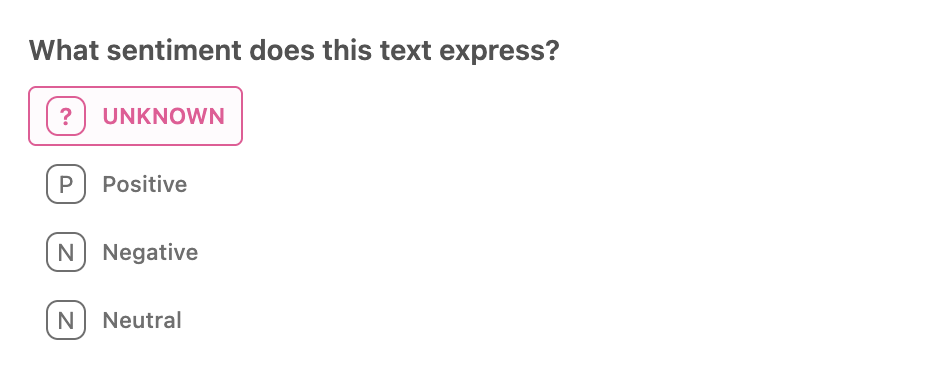
On the right-side pane, you'll see all possible classes that you can label your document with. To label a document, click the class in the right-side menu. Then click the arrow button to move on to the next document.
Reviewing single-label questions
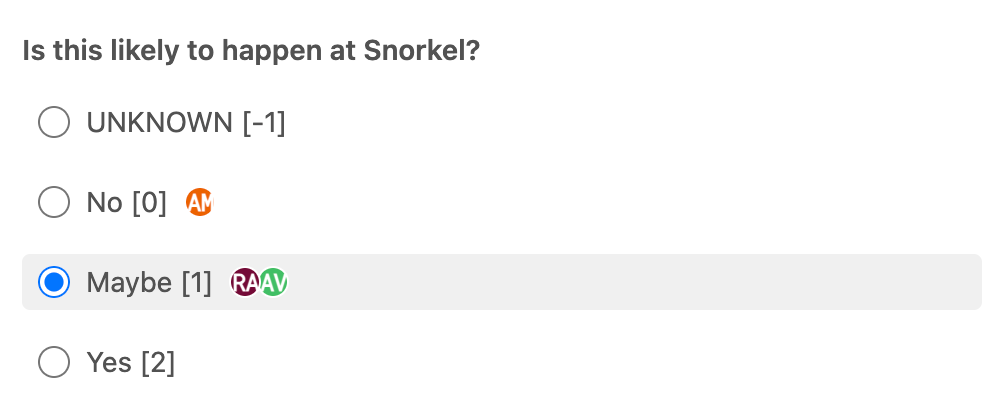
View all label options with each annotator's selection marked by their avatar next to the corresponding label. As a reviewer, use the radio buttons to choose the final ground-truth label.
Multi-label questions
Overview
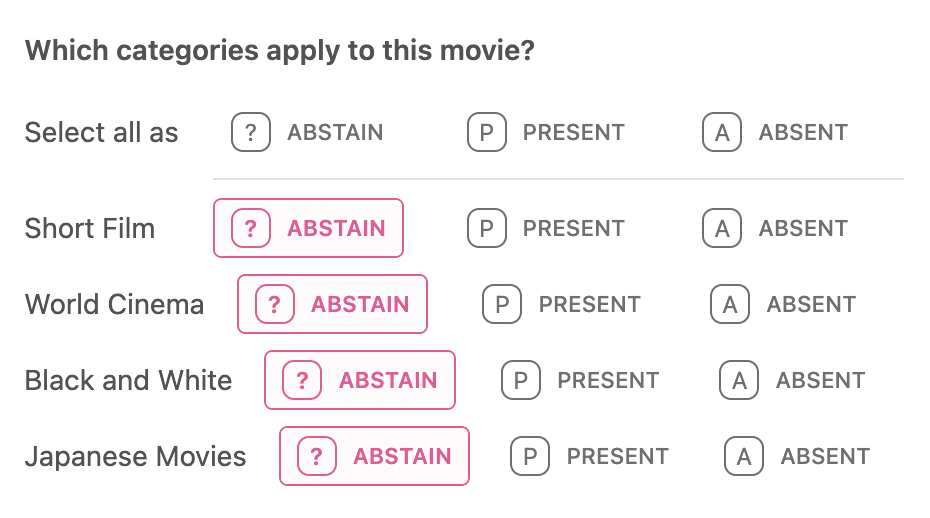
In multi-label questions, individual documents can have multiple label values. For example, let's say you are looking at movie review documents. You can label the movie as "Short Film," "Black and White," "Japanese Movies," or "World Cinema." Given these labels, you can see that a single movie can fall into multiple categories. In this case, for a given document, you can label each possible class as present, absent, or abstain from voting.
Setting up multi-label questions
To set up a multi-label question, replace the placeholder name with a clear, descriptive question (e.g., "Which categories apply to this movie?"). Then, click on a label name (e.g. "Option 1") to modify it. Click "Add option" to add additional labels.
By default, all classes are initially labeled as Abstain. If enabled for your application, you can configure the default label for each class to either Present, Absent, or Abstain.

Annotating multi-label questions
On the right-side pane, you'll see all possible classes. For each class, you can click:
 to label the class as Abstain.
 to label the class as Present.
 to label the class as Absent.
Reviewing multi-label questions
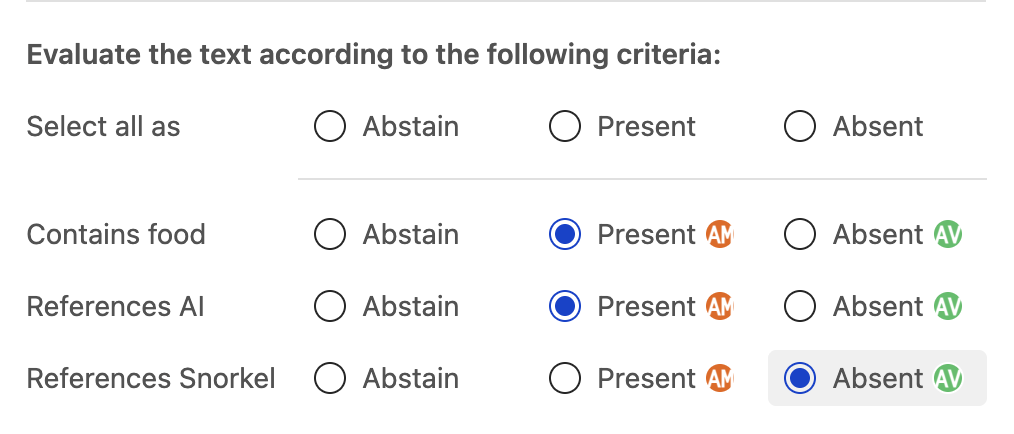
View all label options with each annotator's selections marked by their avatar next to the corresponding labels. As a reviewer, use the radio buttons to choose the final ground-truth labels.
Text label questions
Overview
Text label questions allow annotators to enter freeform text according to the label question name and description. For example, the documents could contain responses to questions and the text label is the rationale for why that is a good or bad response to the question.
Setting up text label questions
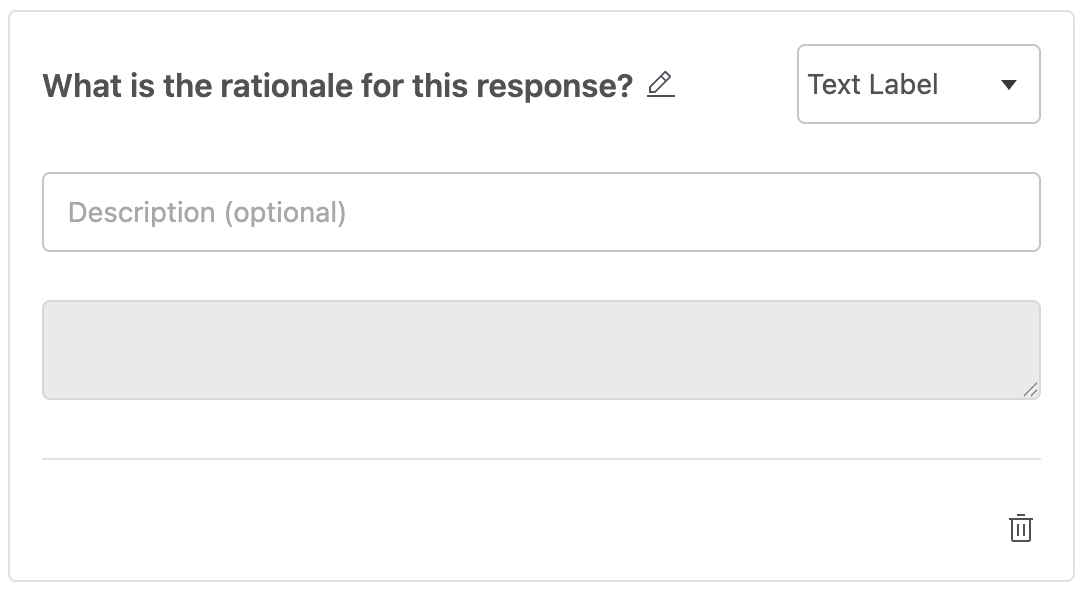
To set up a text label question, replace the placeholder name with a clear, descriptive question (e.g., "What is the rationale for this response?"). (Optional) Then, add a description for the question.
Annotating text label questions
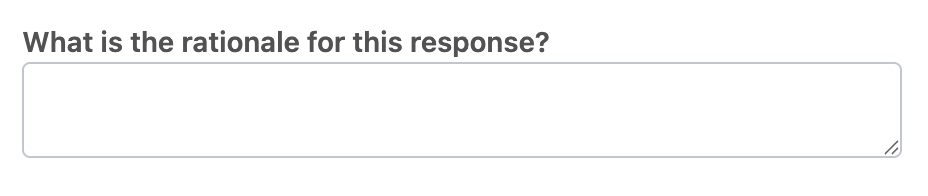
In the right-side pane, you'll see a text field where you can write free form text according to the label question name and description.
Reviewing text label questions
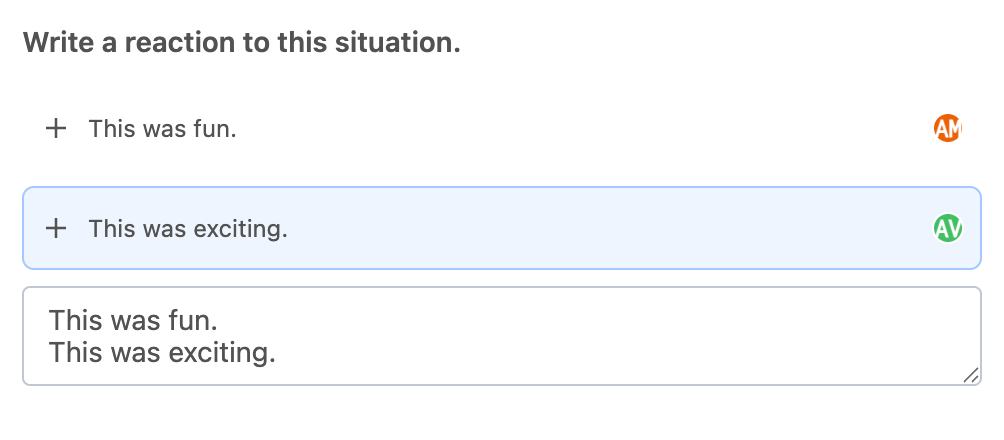
View all text responses from different annotators. Click the plus icon next to any response to add it to your text input field, then make any modifications before finalizing your ground-truth response.
Sequence tagging questions
Overview
Snorkel supports sequence tagging for extraction tasks. Annotators can label spans of text to extract key information from a document. Spans are key pieces of information that you want to extract from a document. For example, let's say we want to identify all mentions of company names in a document. In this case, a company name is considered a span. Your goal is then to highlight and label all company names that you find while reading through the document.
Setting up sequence tagging questions
To set up a sequence tagging question:
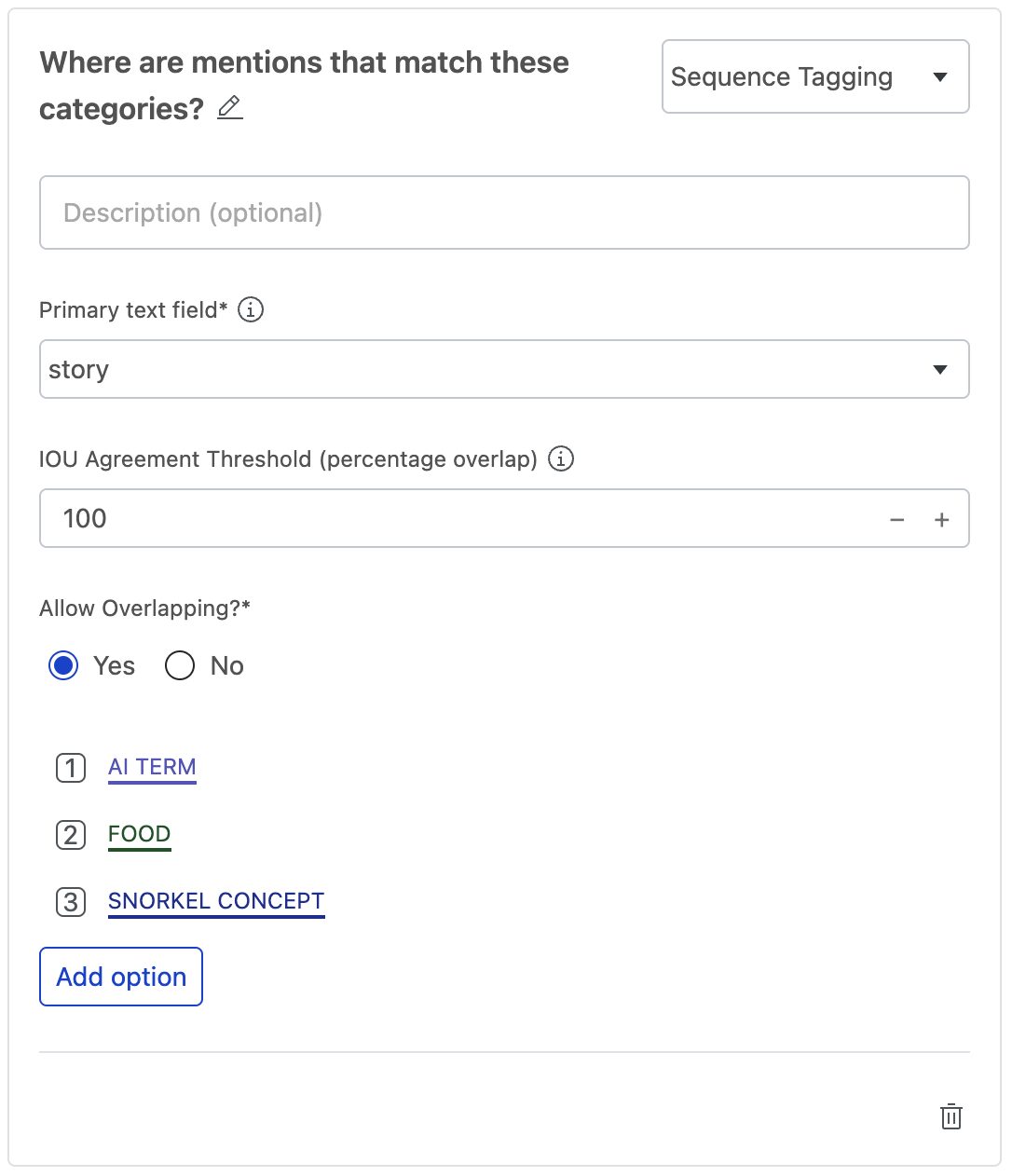
- Replace the placeholder name with a clear, descriptive question (e.g., "Where are mentions that match these categories?").
- Select the primary text field of your dataset for which the sequence tags should be applied. This is the only column that you will be able to use this label schema on.
- Set the IOU Agreement score. The IOU Agreement score is the percentage (Intersection over Union) of overlap required between two annotations with the same label, to consider them as an agreement. This only applies to the IAA matrix.
- Select whether or not text spans are allowed to overlap.
- Click on a label name (e.g. "Option 1") to modify it.
- (Optional) Click "Add option" to add additional labels.
Annotating sequence tagging questions
To label spans:
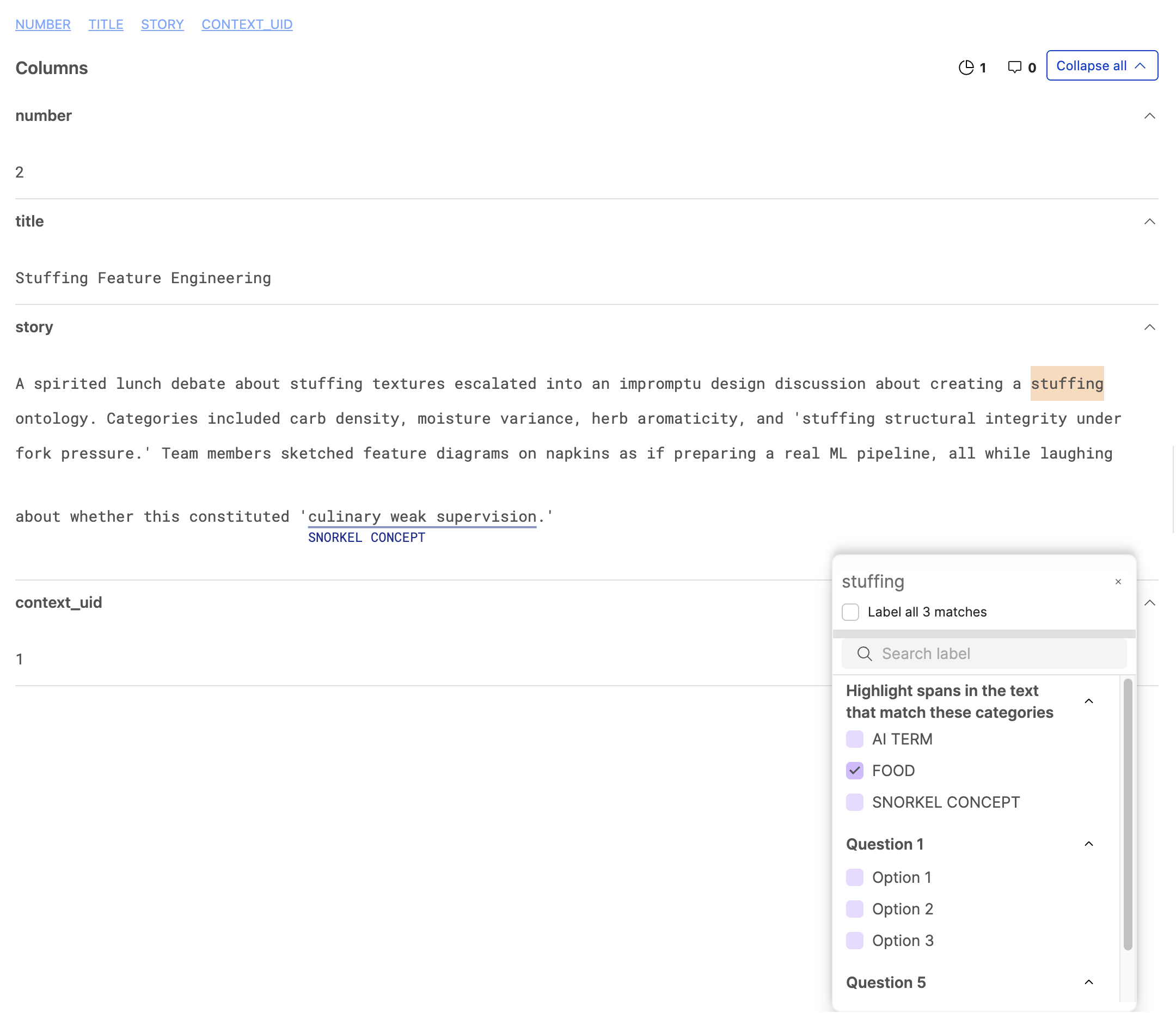
- Highlight a span in the document text.
- Select the label that you want for that span in the Annotation modal.
Reviewing sequence tagging questions
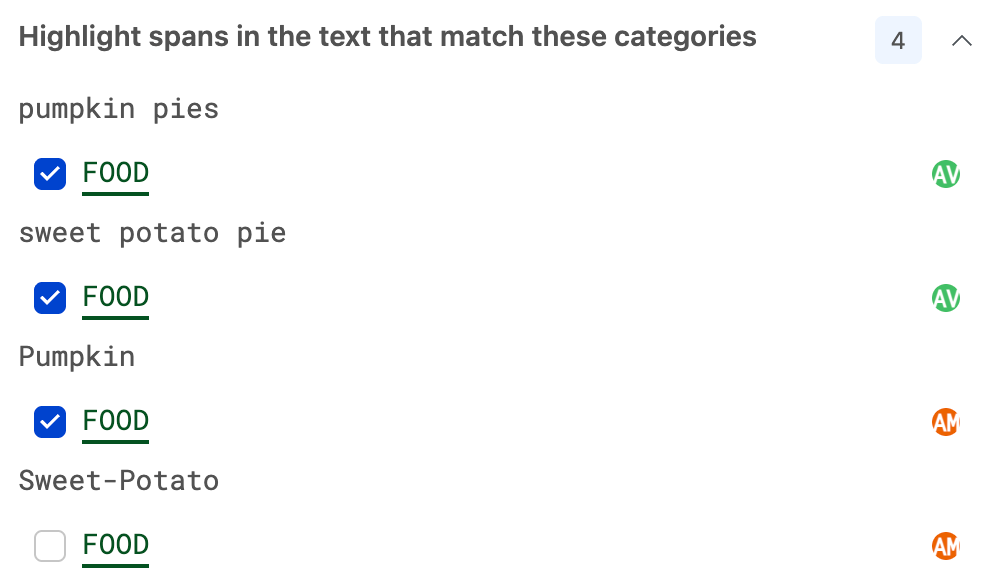
View all sequence tags provided by different annotators. Select from the different tagged segments using checkboxes to choose your final ground-truth tags.